¶ Server Restarts
¶ Information pertaining to Server Restarts and the National Weather Service.
To maintain optimal server performance, scheduled reboots occur twice daily at 4am and 2pm Eastern Time.
Prior notice won't be given directly; instead, a National Weather Service warning will be issued, signaling an approaching severe thunderstorm that will cause rolling blackouts as time passes. Members should look to wrap up ongoing scenes once the first warning is issued and exit the server temporarily. Feel free to return after the reboot is complete.

As noted in the warning, emergency services will be temporarily suspended 15 minutes before the server restart, as it would be unsafe for them to enter the storm during that time.
Restarts are also when the Development Team can push updates to the server. This means that updates get pushed sooner instead of waiting for the previous single restart during the middle of the night. Restarts generally take a few minutes to complete but sometimes could take up to 10 minutes, depending on what's being loaded.
¶ Default Game Build
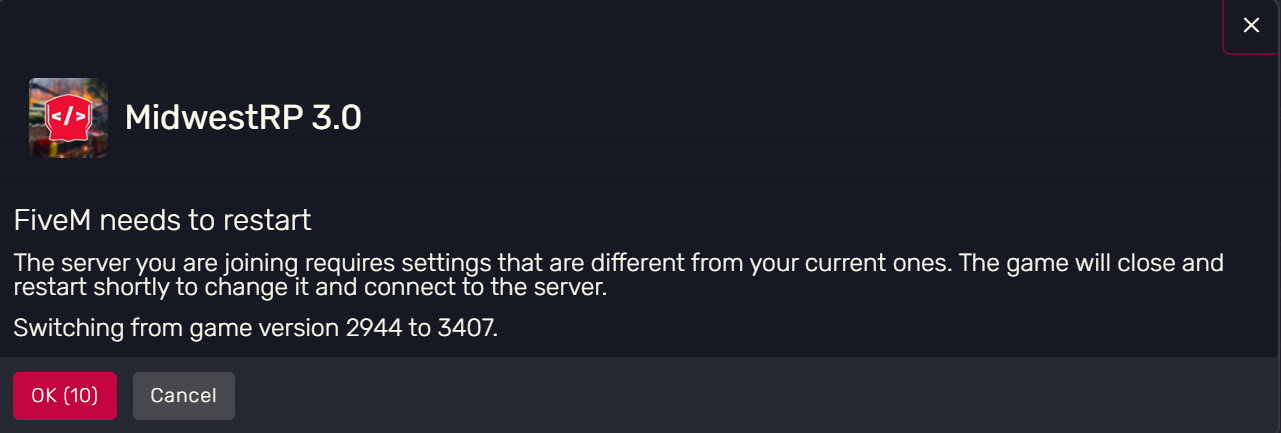
Our servers utilize a GTAV game build higher than the standard production build of FiveM. This enables us to offer players additional DLC vehicles and clothing choices.
As a result, upon joining our server, you might receive a prompt requesting a restart to update the game build. Simply press the 'OK' button to allow FiveM to close and restart.
¶ Clearing Your Cache
¶ Whenever you are having issues or we release an update, it's a good idea to clear your FiveM cache.
Recently, the developers of FiveM changed the location of the cache folders which you should delete. If you installed FiveM by putting the FiveM.exe inside of an empty folder, the data folder will be right inside your FiveM folder underneath FiveM Application Data.
However, this applies to most members, If you didn't, you should have a Shortcut that takes you to the folder directly, called "FiveM Application Data". You can also just enter %localappdata%\FiveM\FiveM.app/data in your Windows Explorer address bar or Start Menu
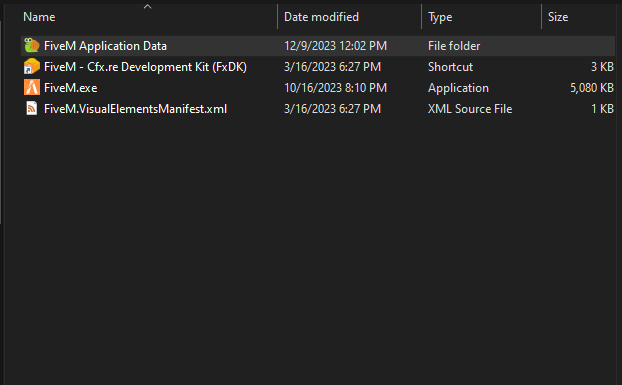
Once inside that FiveM Application Data, Go inside the data folder and delete only these three folders:
-
./cache/ -
./server-cache-priv/ -
./server-cache/
Don't delete the game-storage folder; you will have to re-download the game cache.
After that, all the resources will be re-downloaded when you reconnect to the server!
¶ Obtaining Logs
¶ In this guide it'll allow you to obtain logs that'll assist in creating a Community Support thread.
Note: These logs are required when creating a Community Support thread dealing with any errors or logs.
¶ General Logs
Client logs can assist when reporting an error/issue to the Community Support section. This is because a simple screenshot of your F8 screen may not show any errors that could've occurred previously (such as loading into the game).
To obtain your client log file, you can go to the following directory:
Copy:
C:\Users\user\AppData\Local\FiveM\FiveM.app\logs
Once you're in the logs folder, grab the latest log file (or the log file that occurred during the issue) and upload it to the thread. The file will be named with the date and time and end in a .log extension.

¶ Crash Logs
While playing FiveM you may encounter crashes, when this happens your game will close and you'll be prompted with a box explaining your crash reason. This may not be very helpful, but if you press "Save Information," it'll save a .dmpfile with the crash information should be copied and attached to a support request.
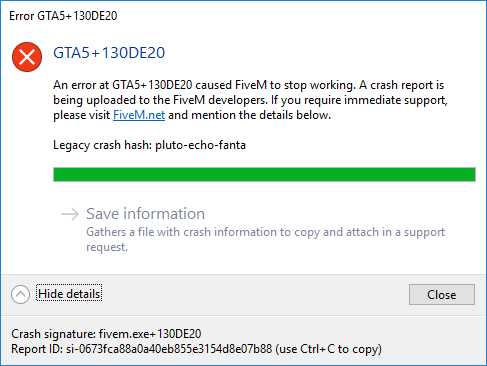
When your game crashes, it may freeze or hang as it writes to the HDD/SSD. Don’t close the game yet, even if Windows asks you for it! At the same time, when you crashed, a Windows Explorer window also opened, pointing to your crashes directory in your FiveM install. It has a file selected by itself, too. If this doesn't open manually, follow the steps below to find the .log and the .dmp files!
¶ Find the .dmp file crash location:
Copy:
C:\Users\user\AppData\Local\FiveM\FiveM.app\crashes
You will see many different types of files here, but you'll want to look in the Date Modified Column and find the most recent file to the time your crash occurred.

¶ Creating Support Thread
When you have your files, you'll want to open a Community Support (insert link) thread and provide as much information as possible to better assist in solving your issue. You'll need to follow a specific message structure when opening a thread. Alongside the following, you'll drag and drop or copy and paste your .log and .dmp (.dmp is only needed for crashes) files. If you have a photo, you can include it if applicable.
- Issue:
[use the title of the post to quickly explain the issue and explain it further here]
Expected Result:
Actual Result:
The process to reproduce:
If you cannot attach the .dmp and .log files when creating the ticket, create the thread and send them in the chat.
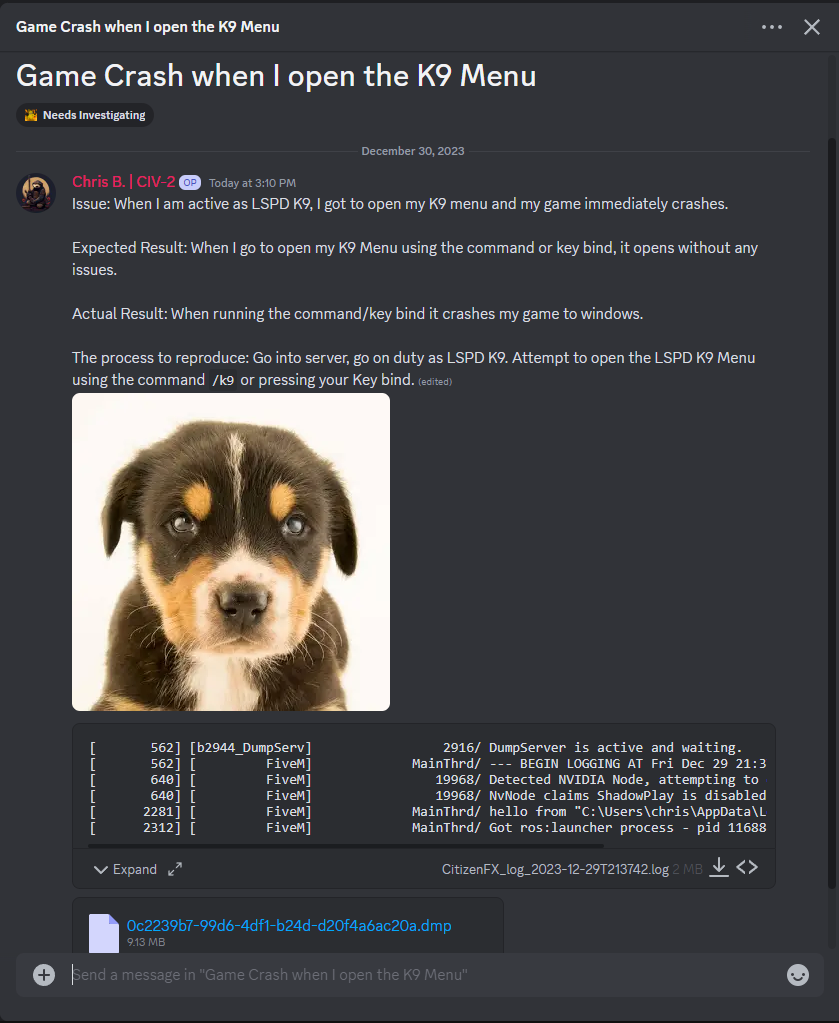
When finished, your thread should look like the following format: